VPN Apps Route Traffic Around Encryption for Specific Programs
ProtonVPN and NordVPN put controls in their Windows clients that decide which apps use the encrypted tunnel and which connect directly.
By Aiko Soto ·
ProtonVPN and NordVPN now let users pick which applications travel through an encrypted tunnel and which connect to the internet directly. The setting, called split tunneling, has shipped in many VPN programs for years but is often left alone. Both companies have surfaced it in their Windows clients, where it sits beside other controls such as a kill switch and port forwarding.
A VPN builds an encrypted route between a device and the web. That route hides browsing activity from internet providers, law enforcement agencies and others on the same Wi-Fi network. The encryption costs some speed, and it changes the location a device reports. Split tunneling sends selected traffic around the encrypted route, so a user does not have to switch the VPN on and off.
The feature appears in several forms. App-based split tunneling decides at the level of individual programs, which is the version most consumer software ships. URL-based split tunneling sets rules by domain name, so a search page can stay inside the tunnel while a local news site connects directly. Route-based and policy-based variants work through IP addresses or broader rule sets and show up mainly in tools for managing other users.
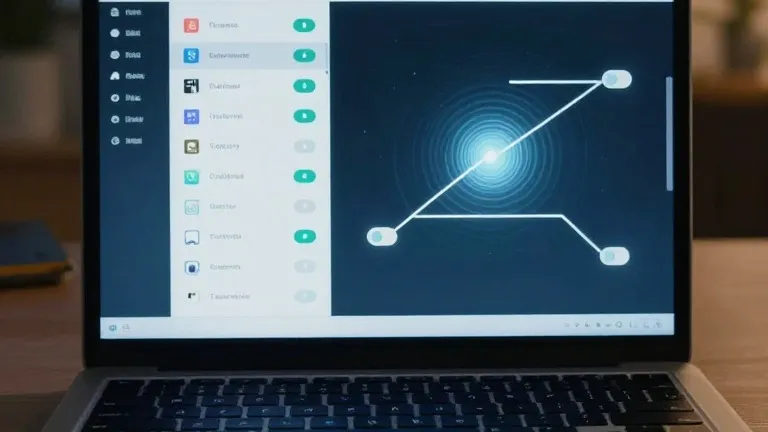
ProtonVPN for Windows places a split tunneling link on the right side of the main console. Once switched on, a user can choose apps to include, which excludes everything else, or apps to exclude, which includes everything else. In NordVPN on Windows, the path runs through the cog icon at the bottom left of the interface, then Split tunneling, then a toggle, after which the user selects which apps receive protection. Mobile setups follow the same pattern in an app's settings. iPhones narrow the choice: users there can typically exclude websites and IP addresses, not apps.
The setup takes one pass. Users can return to the settings and change which apps are covered, but the configuration otherwise stays in place.
In ProtonVPN for Windows, a split tunneling link sits on the right side of the main console, next to options such as a kill switch and port forwarding.